

Until recently, I have to admit that I never really paid much attention to my terminal or to the command-line tools I use every day. But lately, especially with the rise of artificial intelligence, I find myself spending more and more time glued to it.
So I wanted to build an environment that would be quick to set up, easy to reproduce, and above all fast enough to never get in the way of my daily work.
I have to admit I'd have never thought I'd write an article about my terminal, but you never know, it could be useful to someone, and worst case scenario I'll be able to refer to it during my next reinstall! 😄
Here's the result:
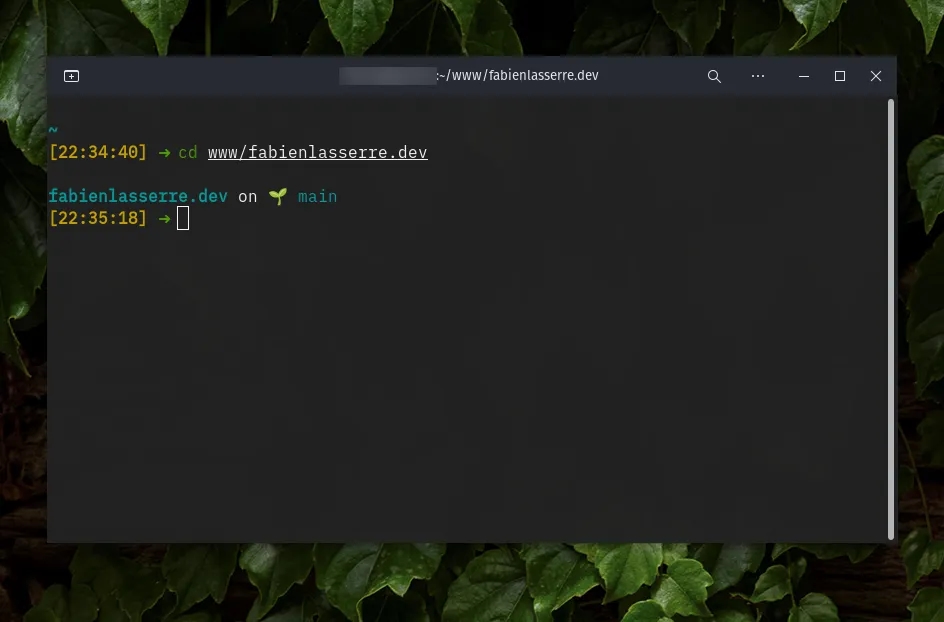
And here are the tools I've chosen:
Simple and efficient: GNOME Terminal
The first decision was choosing the terminal itself. And honestly, it somewhat feels a lot like the JavaScript framework craze. It seems like a new terminal emulator gets released every week, each one promising even better performance than the others — GPU acceleration being the current trend.
To be honest, I've tried quite a few of them, and I've never noticed any groundbreaking difference or discovered a feature that truly changed my workflow. I simply don't think I need my GPU to render text on a black background.
The only one that genuinely made me hesitate was Ghostty. The ability to rename tabs or having split panes are nice things, but for some unknown reason, it takes several seconds to launch on my machine. And this is 2026: my time is precious, I can't tolerate that.
So I still use the default terminal shipped with my distribution: GNOME Terminal. It's lightweight, fast, and free of unnecessary bells and whistles.
The toolbox: ZSH + Oh My ZSH
This is probably the section where I have the least to say. I started using ZSH mostly because it was the "cool thing" around me more than ten years ago, and I installed it following a friend's recommendation.
But after all these years, I've become so used to the aliases and plugins it provides that going back to Bash would feel weird.
As for aliases, I use a few of them daily, especially for Docker:
dcuanddcdfordocker compose up/downdcxfordocker compose execwwwto instantly jump to my projects directory
Regarding plugins, nothing fancy:
git, obviouslyzsh-syntax-highlighting, because I can never remember whether a command actually existszsh-autosuggestions, incredibly useful when you keep typing the same commands over and over
I keep my .zshrc file in a private gist so I can easily restore it on any machine.
The finishing touch: Starship
The latest addition to my setup is Starship, a simple way to customize the shell prompt.
It allows me to have a very minimal prompt while still surfacing all the information I need at a glance.
On Linux, installing Starship is a one-liner:
curl -sS https://starship.rs/install.sh | shThen simply add this line to your ~/.zshrc file:
eval "$(starship init zsh)"And... that's it.
My configuration is intentionally very simple:
# ~/.config/starship.toml
add_newline = true

[character]
success_symbol = '[➜](bold green)'
error_symbol = "[➜](bold red)"

[package]
disabled = true

[git_branch]
symbol = '🌱 '
style = 'cyan'

[nodejs]
disabled = true

[gcloud]
disabled = true

[time]
disabled = false
format = '[\[$time\]]($style) '
time_format = '%T'
To ensure every character renders correctly in the terminal, I highly recommend installing a Nerd Font.
Personally, I use the "Blex" variant of my favorite monospace font: IBM Plex Mono.
The micro cherry on top
Finally, the last thing I add to this setup is Micro, a lightweight text editor that runs directly in the terminal.
It comes with lots of small quality-of-life features that make terminal editing far more pleasant: syntax highlighting, mouse support, intuitive keyboard shortcuts, and more.
And that's it! In less than ten minutes, I have a simple and transparent setup that works equally well at home or on the go, and makes my daily workflow significantly more comfortable.